VRChat Beginner's Guide - Tips & Tricks
Getting Started
Downloading and launching VRChat for the first time feels less like booting up a traditional game and more like stepping through a portal into a chaotic, vibrant digital carnival. Available for free on Steam and the Meta Quest Store, VRChat supports PC VR headsets, standalone Quest headsets, and traditional "Desktop" players using a mouse and keyboard. Regardless of your hardware, your first destination upon logging in will always be the same: the tutorial room.
The tutorial is a mandatory, guided experience that teaches you the absolute basics of locomotion, pointing, grabbing objects, and opening the quick menu. Do not rush through it. Pay close attention to how to bring up your wrist menu, as this is your primary tool for navigating the game. Once you complete the tutorial, you are immediately thrust into a random "Hub" world populated by other players. This is where your true journey begins.
Choosing Your First Avatar
Before you can truly socialize, you need an identity. VRChat handles character models through a system called Avatars. As a brand-new player, you are given a default selection of basic avatars. These include a robot, a skull, a simplistic human, and a few abstract shapes. While it might be tempting to stick with the robot to "look cool," your primary goal in your first session should be ensuring your avatar is highly visible and expressive. Choose a default avatar with visible eyes and a mouth so others can easily read your facial expressions.
Eventually, you will want a custom avatar. You can obtain these in two ways: visiting avatar worlds in-game to pick up public, pre-made models, or uploading your own via the VRChat website using Unity. For your first week, strongly rely on public avatar worlds. Search for worlds tagged "Avatar" in the search menu to find massive closets full of anime characters, fantasy creatures, and sci-fi rigs that you can use for free.
Core Mechanics
VRChat is not a traditional video game with a win state, health bars, or a definitive narrative. Instead, it is a social sandbox built on a few core mechanical pillars that you must understand to navigate comfortably.
World Navigation and Portals
The world of VRChat is broken up into thousands of distinct, user-created instances called Worlds. You travel between these worlds using Portals. A portal looks like a glowing, swirling oval that displays a preview of the destination world. To use a portal, you simply walk or fly into it. You can create a portal yourself by opening your main menu, searching for a world, and selecting "Go." This spawns a portal at your feet that anyone else in your current instance can also use.
Instances and Lobby Logic
Understanding instances is the single most important technical concept in VRChat. An "instance" is a specific copy of a world. If you and a friend go to the same world, you will not automatically see each other. You must be in the exact same instance. Instances are identified by a unique string of characters (e.g., # Instance: 42X8A). If a world is full (usually capped at 32 players for desktop/PC VR or 16-24 for Quest), the game will automatically route you to a new, empty instance of that same world. To join a friend, open the Social tab, find their name, and click "Show Instance" or "Join."
The Avatar System
Your avatar is more than just a visual skin; it dictates your physical interactions in the game. Avatars have specific "PhysBones" (physics-based bones that react to touch and movement) and emotes. Some avatars are massive, while others are tiny. You can adjust your avatar's height using the "Vertical" slider in your quick menu, which is crucial for reaching high objects or sitting on the floor comfortably.
Privacy and Safety Features
Because VRChat is an unmoderated wild west of user-generated content, the game provides robust safety tools. The "Safety" menu, accessible from your quick menu, allows you to block specific users (preventing them from interacting with you or seeing you) and mute individual players. You can also adjust your "Show Avatar" and "Show Content" settings to hide avatars or props that you find visually overwhelming or inappropriate.
Early Game Tips
Your first few hours in VRChat can be incredibly overwhelming. You will likely experience sensory overload as you teleport between worlds filled with loud music, bright lights, and people speaking overlapping languages. Here is what you should prioritize to make your first few hours enjoyable rather than exhausting.
- Calibrate Your Height Immediately: Before doing anything else, open your quick menu and adjust your height. If your real-world height isn't calibrated, you will either be a giant looming over everyone or a tiny speck on the floor. Both scenarios make socializing incredibly awkward.
- Master the "Mute" Gesture: Learn how to push a mute button or use a mute gesture without looking at your menu. Background noise is the number one annoyance in VRChat. If you are eating, coughing, or dealing with a real-world distraction, mute yourself instantly.
- Find a Quiet World: Hubs and popular public worlds are the loudest places on the internet. Use the world search bar to look for "Chill," "Quiet," "Cafe," or "Lounge" worlds. These are designed for sitting down and having actual conversations, which is the best way to make your first friends.
- Learn to Sit Down: Standing in VR for hours is exhausting, and hovering awkwardly in desktop mode feels unnatural. Open your quick menu, find the "Actions" tab, and select "Sit." You can use your analog sticks or mouse to change your sitting position (cross-legged, kneeling, etc.). Sitting instantly makes you look more approachable and relaxed.
- Turn Off "Favorited Worlds" Privacy: By default, people can see what worlds you favorite. Go into your settings on the VRChat website and hide this if you want to explore niche or private worlds without your friends seeing exactly where you are going.

Common Mistakes to Avoid
New players inevitably fall into a few predictable traps. Avoiding these common mistakes will save you from embarrassing social faux pas and technical frustration.
- The "AFK Standing" Syndrome: Do not stand perfectly still in the middle of a busy room while you take a phone call or use the bathroom. To other players, you look like a frozen, lifeless mannequin blocking a pathway. If you need to step away, open your menu and select "Sleep" or simply leave the instance.
- Spawning Giant Props in Crowds: Many worlds give you access to a "Prop Spawner" that lets you summon objects. Spawning a massive, loud, or brightly flashing object in the middle of a calm conversation is a quick way to get blocked by everyone around you. Only spawn props in appropriate worlds, like "Prop and Chill" worlds designed for messing around.
- Screaming "Can you hear me?": When you first log in, you might be unsure if your microphone works. Instead of yelling into a crowd, open your quick menu and look for the audio waveform indicator that lights up when you speak. Alternatively, quietly ask a single nearby person, "Hey, sorry to bother you, is my mic working?"
- Using Voice Changers as a Beginner: It is a running joke in VRChat that players using obvious, cheap voice changers are usually brand new. While voice changers aren't strictly banned, they immediately single you out as a novice and can make your voice incredibly grating to listen to. Use your natural voice until you understand the social norms of the platform.
- Taking "Trolls" Personally: You will encounter people who try to get a reaction out of you by clipping through your avatar, making loud noises, or following you around. Do not engage. Simply open your quick menu, block them, and walk away. Arguing with a troll is a guaranteed way to ruin your own night.
- Joining "Invite+" Worlds Uninvited: When searching for worlds, you will see tags like "Public," "Friends+", "Friends," and "Invite+." If a world is "Invite+," you can only join if someone already inside explicitly sends you an invite link. Do not send direct messages to strangers asking for invites to private worlds; this is considered extremely rude.
Essential Controls & Settings
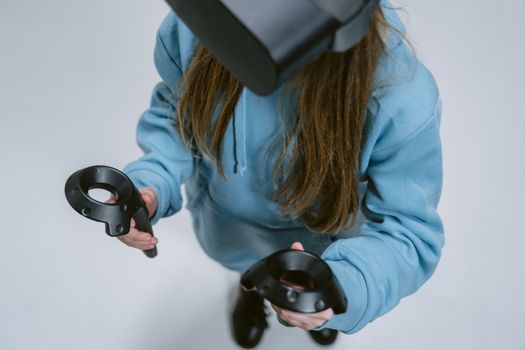
Because VRChat supports entirely different hardware setups, the controls vary wildly. However, the fundamental logic remains the same. Here is a breakdown of the most critical bindings and settings you need to tweak for a comfortable experience.
Universal Core Bindings
- Primary Menu: The button that brings up the main navigation screen (usually the "Y" button on a Quest controller, "B" on a Vive wand, or the "Escape" key on Desktop).
- Quick Menu: The small overlay menu on your wrist or screen (usually holding the "Menu" button or pressing "Tab" on Desktop). This is where your Safety menu, Avatar selection, and Mute button live.
- Pointing: Holding the trigger or click button while your hand is open typically extends a laser pointer used for interacting with UI menus and opening portals.
- Grabbing: Squeezing the grip button closes your hand, allowing you to pick up physics objects, hold drinks, or interact with certain world mechanics.
Crucial Settings to Tweak Immediately
Before you start exploring, open the main menu and navigate to the Settings gear icon. The default settings are optimized for the lowest common denominator and are rarely the most comfortable option.
- Locomotion (VR): By default, VRChat uses "Slide" locomotion with smooth turning. If you are prone to motion sickness, switch turning to "Snap Turn" (usually 45-degree increments) and switch locomotion to "Teleport." Do not let pride stop you from using teleport; it is vastly superior for long sessions if you are sensitive to VR motion.
- Desktop Controls: If you are on Desktop, switch your movement style to "WASD" and ensure your mouse look sensitivity is comfortable. You can toggle between "First Person" and "Third Person" views in the quick menu. Third person is highly recommended for Desktop players, as it makes it much easier to see your avatar's body language and emotes.
- Audio Spatialization: Ensure this is turned ON. It makes voices sound like they are coming from the direction of the person speaking. Turning it off makes everyone sound like they are inside your head, which destroys immersion and makes it impossible to tell who is talking in a crowded room.
- Avatar Impostors: In the Performance settings, turn "Avatar Impostors" to ON. When a player is far away from you, this setting replaces their highly detailed 3D model with a static 2D image (an impostor). This saves massive amounts of processing power and frame rate in large worlds without you ever noticing the difference.
- Fallback Avatar: If your PC or Quest struggles to render a highly complex custom avatar, it will fail to load. By setting a "Fallback Avatar" in your settings, you can choose what replaces those failed avatars (usually a simple blue or red silhouette) so you aren't just looking at floating error messages.
Progression System
VRChat does not have an experience point (XP) system, a battle pass, or a leveling mechanic. There are no stats to grind. However, there is absolutely a progression system, and it is entirely social and trust-based.
The Trust Rank System
As you use VRChat, your account accumulates "Trust." This is an invisible score that slowly increases based on three factors: Time (how many hours you have spent in the game), Social (how many friends you have and how often you interact), and Events (attending official VRChat events). As your Trust increases, you unlock higher "Ranks," displayed as colored names in the user interface.
- Visitor (White): The default rank for everyone. You have severe limitations. You can only upload a very small number of avatars, and those avatars have strict limits on physics bones, particle systems, and texture size.
- New User (Light Blue): Achieved after simply spending a little time in the game. Limits are slightly relaxed.
- User (Green): The standard rank for active players. Unlocks the ability to upload more avatars with slightly higher performance limits.
- Known (Blue): Requires a significant time investment and a robust friends list. This is the first major milestone. It unlocks the ability to upload avatars with up to 8 PhysBone components, 2 particle systems, and higher texture resolutions.
- Trusted (Purple): The endgame for standard users. Requires hundreds of hours and a massive social network. Unlocks the ability to upload "Quest-optimized" avatars directly from your PC, and allows for highly complex avatar setups.
The True "Endgame"
Because the official Trust system takes months to grind, the real progression happens in the community. Your actual progression in VRChat is measured by your ability to network. It starts by making your first friend in a public world. It progresses to getting added to group chats and Discord servers. Eventually, you will be invited to private "Friends+" worlds, then to exclusive "Invite+" parties. The "endgame" of VRChat is having a curated list of high-quality friends and a personalized list of favorite worlds where you can log in every night and feel at home.
Resources & Where to Find Help
Because VRChat is heavily community-driven, the official documentation is often outsourced to the players themselves. If you run into a bug, need a tutorial, or are just looking for a specific type of world, these are the resources you need to bookmark.
The VRChat Documentation and Website
The official VRChat Website (vrchat.com) is where you manage your account, view your avatar uploads, and adjust deep privacy settings. The official VRChat Knowledge Base (docs.vrchat.com) contains the answers to 90% of technical issues, such as how to fix audio cutting out, how to reset your avatar if you get stuck, and the exact mathematical limits for avatar uploading based on your Trust rank.
Community Discords
The VRChat community lives on Discord. If you want to find communities that match your interests, you need to join hub servers. VRChat Group Finder is a massive Discord server dedicated entirely to helping players find smaller, niche groups based on their hobbies (gaming, anime, art, music). Additionally, searching the Disboard website for "VRChat" followed by your specific interests will yield hundreds of specialized servers.
World and Avatar Databases
Finding good worlds using the in-game search bar can be difficult because it is easily gamed by bot accounts. Instead, use community-curated databases. VRChatWorlds.com allows users to rate and review worlds, making it incredibly easy to find high-quality hangout spots, horror games, or scenic exploration worlds. For avatars, VRChat-Avatars.com serves as a massive database of public avatar creators, linking directly to the worlds where their models are hosted.
Avatar Creation Tools
Once you reach "Known" or "Trusted" rank, you will likely want to make your own custom avatars. This requires Unity, specifically the versions supported by VRChat (usually 2018 or 2022). To learn this process, do not guess. Search YouTube for "VRChat Avatar Upload Tutorial [Current Year]". The definitive plugin you must use is the VRChat Creator Companion (VCC), available on the official site, which automates the painful process of setting up Unity environments. For modifying existing models, learn to use Blender (free) alongside the VRChat SDK3 Avatar Builder. There is a massive, incredibly helpful community of avatar creators on YouTube who will walk you through the process of adding clothes, merging bones, and setting up facial expressions step-by-step.