Introduction
Wallpaper Engine is far more than just a simple application that plays videos behind your desktop icons. Available on Steam, it has evolved into the premier destination for customizing your PC workspace, supporting 2D and 3D renders, interactive web-based applications, particle systems, and even full video files. However, because the software is so deceptively deep, many beginners install it, set a single looping video, and never touch it again. This guide will take you from a basic user to a master of the platform, showing you how to curate a flawless, high-performance aesthetic for your gaming rig without sacrificing a single frame per second in your favorite titles.
Foundations
Before diving into the advanced features of Wallpaper Engine, you must understand how the software fundamentally operates. At its core, Wallpaper Engine runs as a background process that replaces your standard static Windows wallpaper with a dynamic canvas rendered either by your CPU or your GPU.
Core Rendering Types
Not all wallpapers are created equal, and understanding the five main types is crucial for managing your system's resources:
- Video Wallpapers: These are standard MP4 or WEBM files. They are the most common but can be the most taxing on your storage if you download hundreds of them. They look great but offer zero interactivity.
- Web Wallpapers: These are built using HTML, CSS, and JavaScript. They can range from simple animated clocks to highly complex, interactive dashboards that pull in live data like your CPU temperature, current weather, or even your Spotify playlist.
- Scene Wallpapers: Created within Wallpaper Engine's proprietary editor, these use a node-based system to combine sprites, particle effects, and 3D models. These are often incredibly optimized and visually striking.
- Application Wallpapers: These allow you to run entirely separate programs as your wallpaper, such as a web browser, a YouTube video, or even a retro game emulator.
- Unity Wallpapers: Though largely phased out in favor of the Scene editor, older legacy wallpapers might still use this format. They tend to be heavier on system resources.
The Performance Rule
The most important rule of Wallpaper Engine is that it pauses when you are running a game or a resource-heavy application in fullscreen. By default, the software is designed to be entirely invisible to your gaming performance. However, if you are playing a borderless windowed game, or if you have specific overlay software running, Wallpaper Engine might continue rendering in the background. Always ensure you understand how your wallpapers interact with your gaming sessions to avoid unexpected frame drops.

Early Game Strategy
When you first launch Wallpaper Engine, the sheer volume of the Steam Workshop can be overwhelming. There are millions of options. Your early strategy should focus on curation, organization, and establishing a zero-clutter environment.
Curating Your Workshop Experience
Do not just download the top trending anime loop or the most popular cyberpunk cityscape. Instead, use the Workshop's robust filtering system. You can filter by resolution to ensure you are only downloading assets that match your monitor's native aspect ratio (e.g., 2560x1440 for 1440p, or 3440x1440 for Ultrawide). Filtering by aspect ratio prevents ugly black bars or stretched, pixelated images.
Furthermore, pay attention to the "Type" filter. If you want your desktop to feel alive, search specifically for "Web" wallpapers with the "Interactive" tag. If you have a lower-end PC, filter by "Scene" and sort by "Low Resource Usage" to guarantee a smooth desktop experience.
Organizing Your Library
Beginners make the mistake of dumping every cool wallpaper they see into their main library. Within a week, finding a specific wallpaper becomes a chore. From day one, utilize the folder system in Wallpaper Engine. Create specific directories based on mood, genre, or resource intensity. Create folders like "Minimalist," "High-End 3D," "Lofi Study," and "Heavy Web Apps." When you right-click a wallpaper in your library, you can assign it to a folder. This curation is the foundation of mastering the software.
Desktop Icon Management
A stunning 4K particle-effect wallpaper is completely ruined if it is obscured by dozens of mismatched desktop shortcuts. Early on, decide how you want to handle your icons. You have three viable choices: delete unnecessary shortcuts and pin essential apps to your Taskbar, use a third-party launcher like RocketDock, or use Wallpaper Engine's built-in "Keep aspect ratio" or "Crop" settings to push your icons to a specific, unobtrusive area of the screen. Some advanced Web wallpapers even allow you to toggle desktop icons off entirely when the wallpaper is active.
Mid Game Transition
Once you have a curated library and understand how to navigate the Workshop, it is time to transition from a passive consumer of wallpapers to an active customizer. This is where Wallpaper Engine truly shines.
Tweaking Existing Wallpapers
Every wallpaper in your library has a settings menu, accessed by double-clicking the wallpaper or highlighting it and clicking the settings icon. Do not ignore this menu. Even simple video wallpapers have settings. You can adjust the playback volume, change the filtering algorithm to make blurry videos look sharper, and adjust the hue or brightness to better match your monitor's color profile.
For Scene and Web wallpapers, this menu is a treasure trove. Creators often hide alternate color schemes, different weather states, or toggleable UI elements in these settings. A mountain scene might have a setting to change the time of day from dawn to dusk. A web dashboard might let you swap out a digital clock for an analog one. Always explore these menus to make a shared Workshop wallpaper feel uniquely yours.
Creating Your First Scenes
Wallpaper Engine includes a powerful, built-in editor. Do not be intimidated by it. Open the editor and select "New Scene Wallpaper." You do not need to build a wallpaper from scratch immediately. Instead, import a high-resolution image you like. Then, experiment with dragging and dropping particle effects from the asset library onto your image. Add a subtle snow effect, some drifting fog, or floating embers. Adjust the spawn rate and the physics of the particles. By simply layering a particle effect over a static image, you have created a custom, dynamic wallpaper that uses minimal resources but looks highly professional.
Exploring the Web Editor
If you have a basic understanding of HTML and CSS, the Web editor is incredibly rewarding. You can create a wallpaper that displays your hardware stats using a free API, shows your Discord status, or acts as an interactive to-do list. Start by taking an existing Web wallpaper from the Workshop, clicking "Open in Editor," and inspecting the code. Change the hex codes for the background colors or alter the font family. Reverse-engineering existing wallpapers is the fastest way to learn how the Web system works.
Optimization Tips
A common misconception is that Wallpaper Engine will destroy your PC's performance. While it can be heavy if misconfigured, proper optimization ensures it uses less than 1% of your GPU and a few megabytes of RAM while idle. Here is how to min-max your setup.
Global Performance Settings
Navigate to the general Settings menu in Wallpaper Engine. Under the "Performance" tab, you will find the most critical options in the software. First, ensure "Pause wallpaper when a fullscreen application is focused" is checked. This is your primary defense against frame drops in games. Second, look at the "Wallpaper Renderer" option. By default, this is set to "Auto," which usually selects your dedicated GPU. If you have a laptop or a PC with an integrated graphics card (like an AMD APU or Intel chip), you can force Wallpaper Engine to render on the iGPU. This entirely offloads the wallpaper from your main gaming GPU, resulting in absolutely zero impact on your gaming frames.
Managing Multi-Monitor Setups
If you have a dual or triple monitor setup, do not set a heavy 3D or Video wallpaper on every screen. Your primary monitor (where your active windows are) should get the visually demanding wallpaper. For your secondary and tertiary monitors, set a static image or a very lightweight, minimalist Web wallpaper. Wallpaper Engine allows you to set different wallpapers per monitor. Additionally, under the monitor settings, ensure you check "Pause this monitor when fullscreen applications are running" for your side monitors, as you won't be looking at them while gaming anyway.
Frame Rate and Resolution Limits
A 60fps wallpaper looks incredibly smooth, but it is entirely unnecessary for a background image. In the settings for individual wallpapers, look for the "Target FPS" slider. Dropping a video wallpaper from 60fps to 30fps will cut its GPU usage in half, and the human eye barely registers the difference on a peripheral background element. Similarly, if a 4K video wallpaper is stuttering on your system, use the resolution scaling option to force it to render at 75% or 50% of its native resolution. It will still look good, but it will run flawlessly.
Startup Impact
By default, Wallpaper Engine launches when Windows starts. If your PC takes a long time to boot, you can delay the start of the application. In the Windows Task Manager, navigate to the "Startup" tab, find Wallpaper Engine, right-click it, and you can sometimes enable a delayed start. Alternatively, inside Wallpaper Engine's settings, you can uncheck "Start with Windows" entirely and simply launch it manually when you want to look at your desktop. For automated startup without the boot-time hit, create a basic Task Scheduler task in Windows that launches Wallpaper Engine 60 seconds after you log in.
Community Resources
Mastering Wallpaper Engine is an ongoing process, as the community constantly develops new techniques, scripts, and assets. To keep your setup on the cutting edge, you need to know where to look.
The Steam Workshop
The Workshop is not just for downloading wallpapers; it is a learning tool. When you find a wallpaper that does something interesting—like responding to your mouse cursor or displaying live network stats—click the "Discussions" tab on that wallpaper's Workshop page. Creators often post the source code, explain how they achieved specific effects, or link to the open-source JavaScript libraries they used. Bookmarking the pages of highly skilled creators is better than downloading a hundred random wallpapers.
Official Discord Server
The official Wallpaper Engine Discord server is the best place for real-time help. If you are trying to write a specific JavaScript function for a Web wallpaper and your code is broken, dropping it in the #web-wallpapers channel will usually get you a fix within minutes. The server is divided into categories for general help, wallpaper requests, showcasing your setups, and technical support for the editor. It is also the best place to report bugs or suggest features to the developers, who are highly active in the community.
Reddit Communities
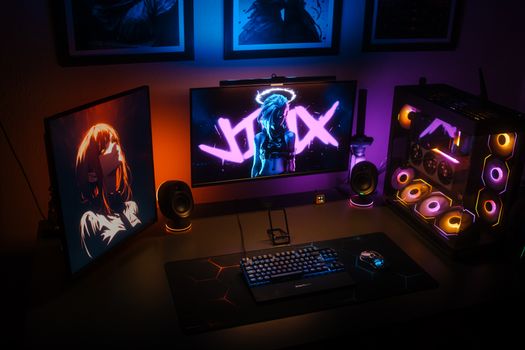
The r/WallpaperEngine subreddit is an excellent source of curation. Users frequently post "Best of" compilations, categorized by themes like "Minimalist," "Sci-Fi," or "Lofi." If you need inspiration but don't want to slog through the Workshop's search algorithm, browsing the top posts of all time on this subreddit will give you a curated list of the highest-quality wallpapers available. There are also niche subreddits like r/DeskSetup where users frequently discuss how their Wallpaper Engine choices complement their physical desk setups, RGB lighting, and monitor stands.
Third-Party Asset Sites
If you decide to dive deep into the Scene editor, you will eventually run out of built-in sprites and particles. You can import your own assets from sites like Kenney.nl, which offers thousands of free, public-domain 2D and 3D game assets that work perfectly in the Wallpaper Engine scene editor. For high-quality video backgrounds, sites like Pexels or Videezy offer free stock video that you can manually drop into the Wallpaper Engine editor, add particle effects to, and export as your own personal wallpaper.
By leveraging these resources and applying the optimization strategies outlined above, you will transform Wallpaper Engine from a novelty into an essential, seamless part of your daily PC experience.